Built-in tools
Built-in actions
Start with built-in tools before building custom integrations. Email, SMS, conference forwarding, and system tools cover many first operational workflows.
Each tool needs clear timing, required inputs, caller consent where needed, and a fallback.
Built-in tools are the fastest way to make a callback assistant useful after the call ends. For most teams, the first real upgrade after a working phone flow is the Email Tool. After that, the next common step is Conference Forwarding for urgent or human-only cases.
System tools that already exist
These tools are available to voice agents without extra setup:
| Tool | What it does | Typical use |
|---|---|---|
getCurrentDate |
Returns the current date and time | Scheduling or time-aware answers |
endCall |
Ends the active call | Closing a conversation cleanly |
| STT Language Control | Inspects and narrows live speech-to-text language candidates | Improving recognition for multilingual calls |
readFact |
Reads a stored conversation fact | Reusing information already captured |
storeFact |
Stores one fact from the conversation | Saving one important value |
storeFacts |
Stores multiple facts from the conversation | Saving structured facts during the call |
The platform includes built-in tools in the assistant's {tools} prompt parameter automatically. In the agent's Built-in Tools section, admins can also disable tools an agent should not use.
STT Language Control
Use STT Language Control only when a voice agent works with more than one speech recognition language. It lets the agent narrow the active recognition candidates after the caller's language is clear.
Leave it enabled for multilingual agents that may need to switch or narrow languages during a call. Disable it for simple single-language agents if you want the smallest possible tool surface.
Start with the Email Tool
For the Nuvoca Callback Assistant, the Email Tool is the default first tool. It turns a completed callback conversation into a handoff your team can act on immediately.
Use it when:
- the assistant should send callback details to a shared inbox
- the team should receive the summary right after the call
- you want a human-readable handoff before you build CRM automation
What the Email Tool should send
For the callback flow, the email should capture:
- caller name
- company name
- reason for the call
- callback number
- any urgency or special notes the caller mentioned
If your prompt and conversation history are working well, the email can also preserve useful nuance, such as whether the caller asked for an urgent callback or mentioned a preferred time window.
Configure the Email Tool
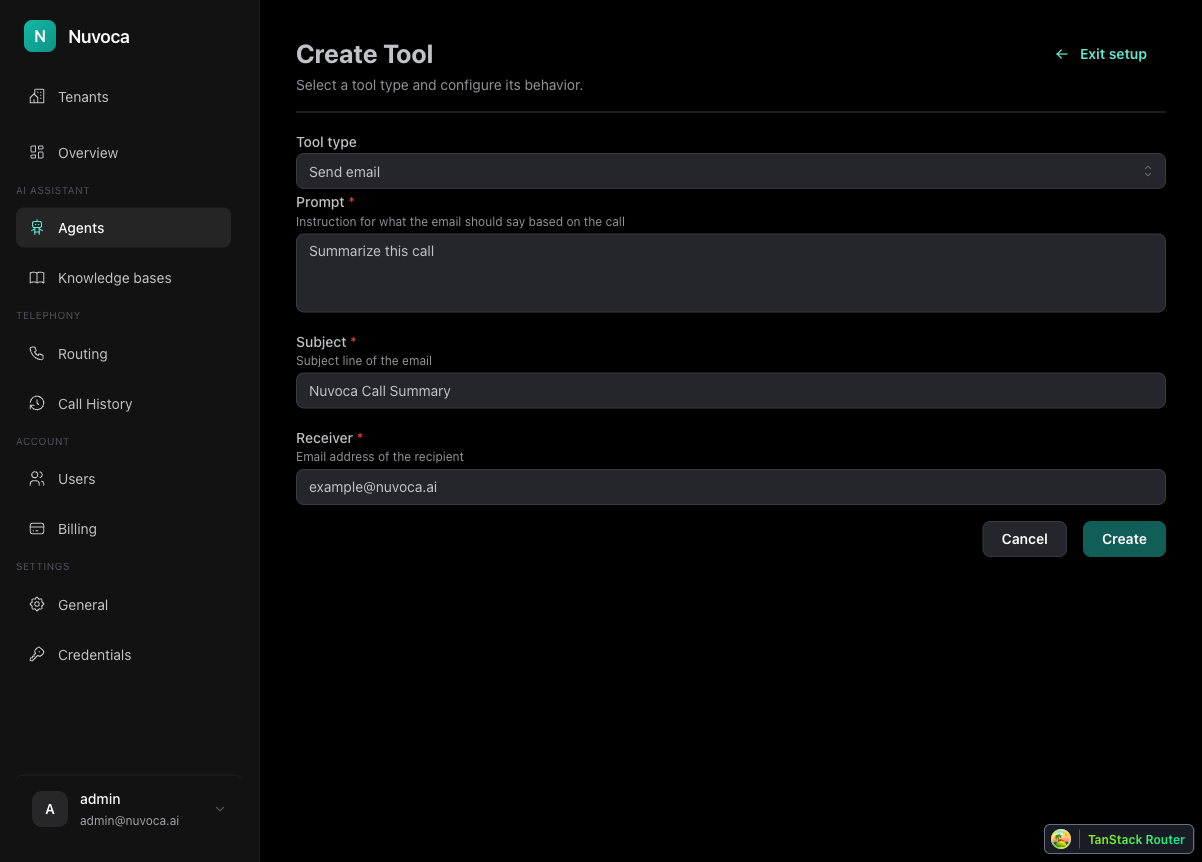
From the assistant editor:
- Open Actions > Tools
- Click Add Tool
- Select Email
- Fill in the email body prompt, subject, To recipients, optional agent-added To recipients, optional CC recipients, and execution description
Recommended callback-assistant configuration
| Field | What to put here | Callback example |
|---|---|---|
| Email Body Prompt | Instructions for the email content | See the example prompt below |
| Email Subject | A short subject line the team can scan quickly | Callback Request | Nuvoca Assistant |
| To recipients | Fixed inboxes or team addresses that should always receive the handoff | support@company.com |
| Allow agent-added To recipients | Lets the agent add extra To recipients at runtime | Enable only when the agent can determine the destination from a prompt, API result, or trusted routing data |
| CC recipients | Optional fixed copied recipients | Team lead, archive, or audit inbox |
| Execution Description | The trigger logic that tells the model when this tool should run | Run only after all callback details and required destination data are collected |
| Include facts | Adds collected facts as a separate email section | Enable when memory facts are useful for review |
| Include conversation history | Adds the full conversation history as a separate email section | Enable for audit or QA use, not every handoff |
Fixed and agent-added recipients
Most Email Tools use fixed To recipients. This is the safest setup for callback inboxes, shared team mailboxes, or simple handoffs.
Enable Allow agent-added To recipients when the destination is discovered during the conversation, for example after an API Tool returns the responsible department address. Fixed To recipients are still included. CC recipients remain fixed, and the agent cannot add CC, BCC, From, subject, or prompt values.
If you enable agent-added recipients and leave To recipients empty, the agent must provide at least one destination. In your agent prompt or tool instructions, be explicit:
When the routing lookup returns a service_email, use the Email Tool with toRecipients set to [service_email]. Do not send the email if no service_email or other trusted destination address is available.
Use this option only with trusted routing data. Do not ask callers for internal company email addresses.
Recommended Email Body Prompt
Use a prompt like this:
# Role and Objective
You are a helpful email assistant specialized in callback summaries.

# Instructions
Given the conversation history, summarize the callback request as a bullet list.
Do not omit important details.

# Required output
- Caller name
- Company name
- Callback number
- Reason for the call
- Important notes or urgency
This is intentionally simple. The assistant already has access to the conversation context, collected facts, and optional email note. The email prompt should focus on output quality, not on re-explaining the full call flow.
CC recipients and extra sections
Use CC recipients when a team lead, archive, or audit inbox should receive a copy without becoming the primary handoff destination. CC recipients are configured by an admin; the agent cannot add CC recipients at runtime.
Use Include facts when the team benefits from a separate key/value fact list. Use Include conversation history only when reviewers need the full transcript. For normal callback emails, a concise summary is usually easier to scan.
The most important field: Execution Description
The execution description is the control point. It tells the model when the tool is allowed to run.
For the callback assistant, use logic like this:
Use this tool only after the caller name, company name, reason for the call, and callback number have been collected or confirmed. Do not use it early. After the tool runs, close the conversation politely.
If this instruction is vague, the assistant may send the email too early or skip it entirely.
How the callback flow should end
Your assistant prompt and Email Tool should work together like this:
- The assistant gathers the four callback facts
- The assistant confirms the callback number
- The assistant runs the Email Tool
- The assistant closes the call with a short final line
A practical closing line is:
Common Email Tool mistake
The most common failure is triggering the tool before the conversation is complete. If the email lands without the company name, callback number, or reason for the call, make the execution description stricter and verify the assistant is only asking one question at a time.
SMS Tool
Use the SMS Tool when the caller should receive a short confirmation, link, or reminder by text message.
Use SMS when:
- the caller explicitly asks for information by SMS,
- the workflow requires a short confirmation,
- the agent has consent to send the message,
- the message is short enough to be useful on a phone.
SMS body modes
The SMS Tool supports three message text modes:
| Mode | How the text is created | Best for |
|---|---|---|
| Agent provides full text | The agent writes the message during the call | Dynamic confirmations based on the conversation |
| Static text | A fixed message is configured once | Always-the-same reminders or links |
| Template with agent values | A template contains placeholders the agent fills at runtime | Structured messages such as appointment confirmations |
Template placeholders
In template mode, the platform can fill common values such as:
{caller_phone_number}{tenant_id}{recipient_number}{agent_text}or{message}for text the agent provides
You can also add custom placeholders such as {appointment_time}. Keep templates short and test them before live use.
Sender and recipient numbers
The Brand / Sender ID can be an alphanumeric sender name or an E.164 phone number. Alphanumeric sender support can depend on your SMS provider and destination country. The SMS recipient must be an E.164 number, for example +491701234567.
If the agent does not provide a separate recipient, the tool uses the current caller number when available.
Test SMS before going live
The SMS tool includes a test area for saved tools. It sends a real SMS using the saved sender and current body mode, so billable SMS usage can apply.
Use the test when you change body mode, sender ID, template placeholders, or recipient handling.
Good SMS instructions include:
Use this SMS tool only after the caller agrees to receive a text message.
If the current caller number is available, confirm that it is the right mobile number.
Keep the SMS short and include only the agreed information.
Avoid using SMS for long explanations, sensitive information, or anything that should be handled in a secure portal.
Conference Forwarding
Conference forwarding is for cases where an email handoff is not enough. Use it when the caller needs a live person now, not later.
Typical cases:
- urgent or high-value callers
- callers who explicitly ask for a human
- situations where the callback assistant should try a live handoff first
Configure Conference Forwarding
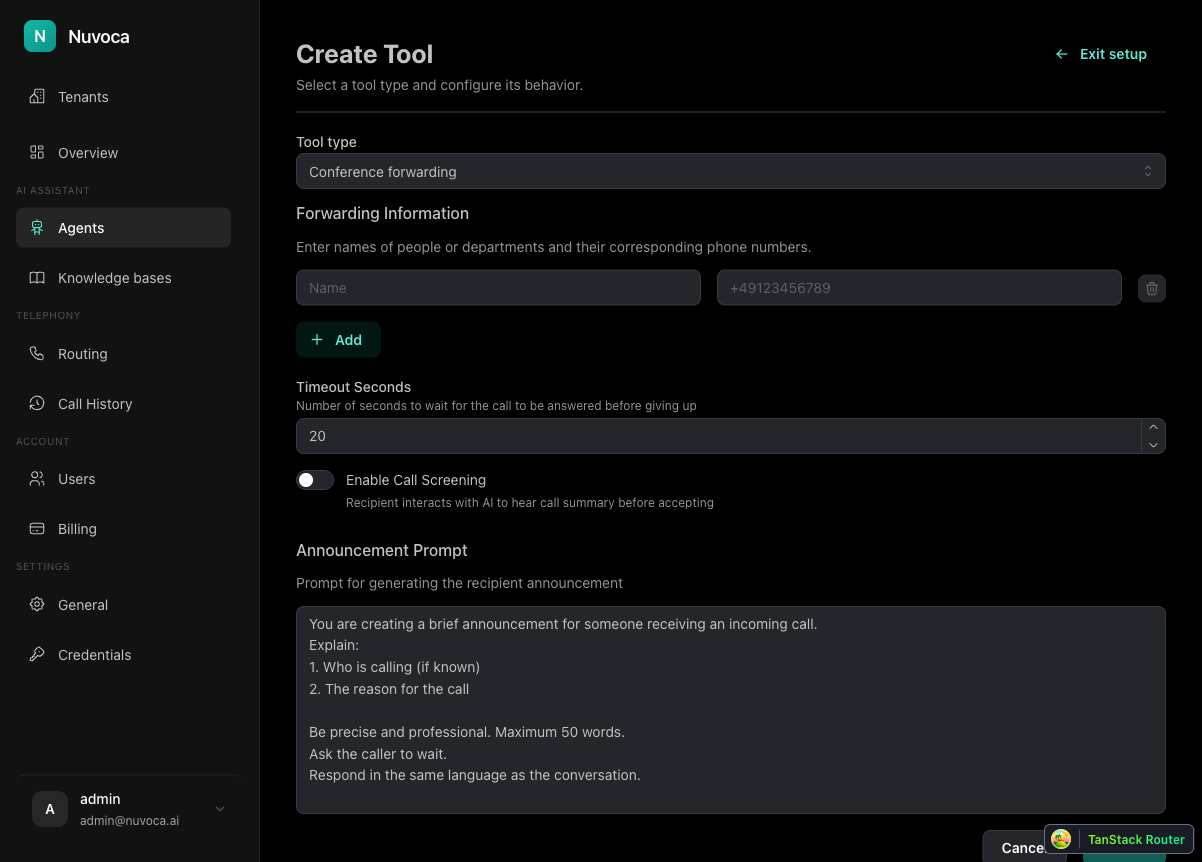
From Actions > Tools:
- Click Add Tool
- Select Conference forwarding
- Add one or more forwarding targets, or enable dynamic recipients when the number comes from trusted routing data
- Set a timeout
- Decide whether to enable call screening
Recommended callback-assistant configuration
| Field | What it does | Recommendation |
|---|---|---|
| Name / Display name | How the tool is presented to the assistant | Use a clear action name that matches your prompt language |
| Execution Description | When the assistant is allowed to use the forwarding tool | Make the trigger strict and include the fallback behavior |
| Phone Number | The target for the handoff | Use the real team number or department target |
| Allow dynamic recipient | Lets the assistant forward to a runtime E.164 phone number | Use only with trusted routing data or controlled integrations; uncontrolled dynamic forwarding can create toll-fraud risk |
| Timeout Seconds | How long the target rings before the assistant takes the call back | Start around 20 to 25 seconds |
| Call Screening | Plays a short summary to the employee before they accept | Enable it when context matters before pickup |
| Screening Summary Prompt | Defines the summary the recipient hears before accepting a screened transfer | Keep it concise and factual |
| Announcement Prompt | Defines what the recipient hears for direct forwarding | Include caller identity and reason for the call |
Why call screening matters
Call screening is one of the strongest handoff features for real operations:
- the caller stays on hold first
- the employee hears who is calling and why
- the employee can accept or decline the transfer
- if declined or unanswered, the assistant can return and continue the callback path
That means your human team is prepared before speaking and the caller is not abandoned if nobody picks up.
Recommended forwarding fallback
Your assistant prompt should account for the timeout case. A good fallback line is:
I could not reach anyone right now. Let me keep this as a callback request and send it to the team immediately.
This keeps the experience graceful when no one answers.
Useful execution description
Use this tool when the caller clearly asks for a human now or when the issue is urgent enough to require a live handoff. If no one accepts the transfer, return to the callback flow and collect or confirm the callback details.
If dynamic recipients are enabled, be explicit about the allowed number source:
Use dynamic recipient numbers only when they come from the trusted routing lookup. Do not forward to a number supplied only by the caller. When dynamic recipients are disabled, runtime numbers are rejected and only configured target names work.
How to choose between email and forwarding
Use the Email Tool when:
- the team should call back later
- the assistant's job is message-taking
- you want the most reliable first automation
Use Conference Forwarding when:
- a human should join now
- the caller is urgent
- the receiving person needs context before pickup
Many teams use both. The callback assistant sends an email by default and only forwards when the situation qualifies.
Copy the active tool schema
The tools UI can copy the active tool schema for an agent. Use this when you are writing prompts or debugging why the assistant called a tool with the wrong input.
The copied schema shows the active tool names, descriptions, return type, and input fields that the model sees. The schema itself should not contain customer data, credentials, or phone numbers. It is most useful for:
- checking whether a tool is enabled,
- confirming the exact input fields the assistant can provide,
- sharing tool context with someone helping write or review a prompt.
Do not paste sensitive customer examples, private numbers, or real credentials into prompts or external tools while debugging.
Tool management
To review tools on an assistant:
- Open Agents
- Select the assistant
- Open the Tools tab
From there you can:
- edit an existing tool
- delete a tool
- verify whether the tool configuration still matches the prompt logic
Debugging tool behavior
When tool behavior looks wrong:
- Check the assistant prompt first
- Check the tool's execution description second
- Use voice debugging to confirm when the model decided to execute the tool
If the Email Tool or forwarding action fires too early, the problem is usually not the transport itself. It is the trigger logic in the prompt or the execution description.