API tools
API integration
API tools send structured data to external systems or fetch live information. They work best when the schema is explicit and the trigger is strict.
The API should run only after the agent has collected the required fields.
API tools connect your assistant to the rest of your operating stack. Once the callback assistant can already collect clean caller details, an API tool is the next step if those details should land in a CRM, ticketing system, webhook, or backend instead of only arriving by email.
For most teams, API tools are phase two. Start with the Email Tool first unless your workflow already depends on structured system handoff.
When an API tool is worth it
Use an API tool when:
- callback requests should create a lead in a CRM
- a support ticket should be opened automatically
- your backend needs a structured JSON payload as part of the live flow, after the caller confirms details
- the assistant must fetch live information before answering
Do not start here if the callback flow itself is still unstable.
API Tool or Pre Processing?
Use Pre Processing when the platform should look up caller context automatically at the start of an incoming voice call.
Use an API Tool when the agent should decide during the conversation that an external request is needed, such as creating a ticket, checking a status, or sending structured data after the caller confirms details.
The callback-assistant use case
A strong API example is the callback assistant writing directly into another system.
For that case, the assistant should send:
namecompanyreasonphone_number
The model should only call the API after those values are collected successfully.
Create the tool
Step 1: Select the tool type
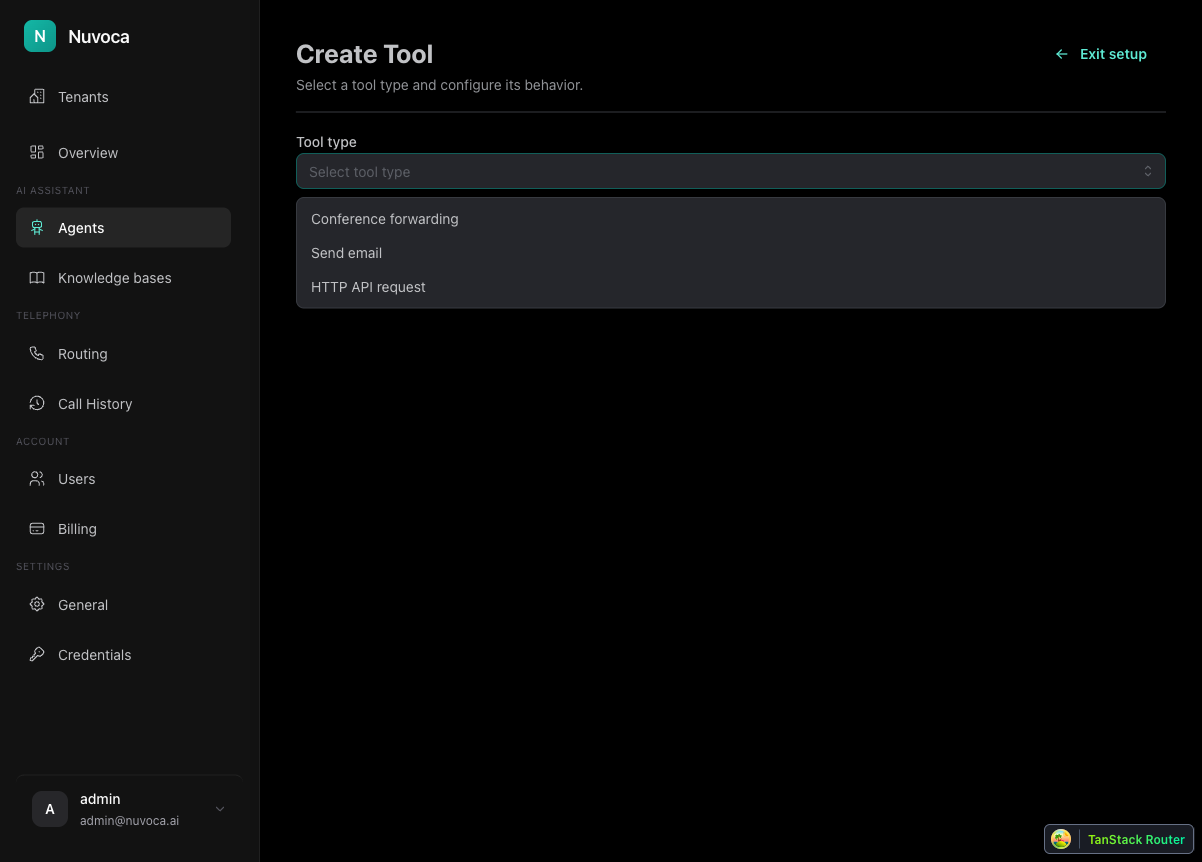
From Actions > Tools:
- Click Add Tool
- Select HTTP API request
Step 2: Fill in the core settings
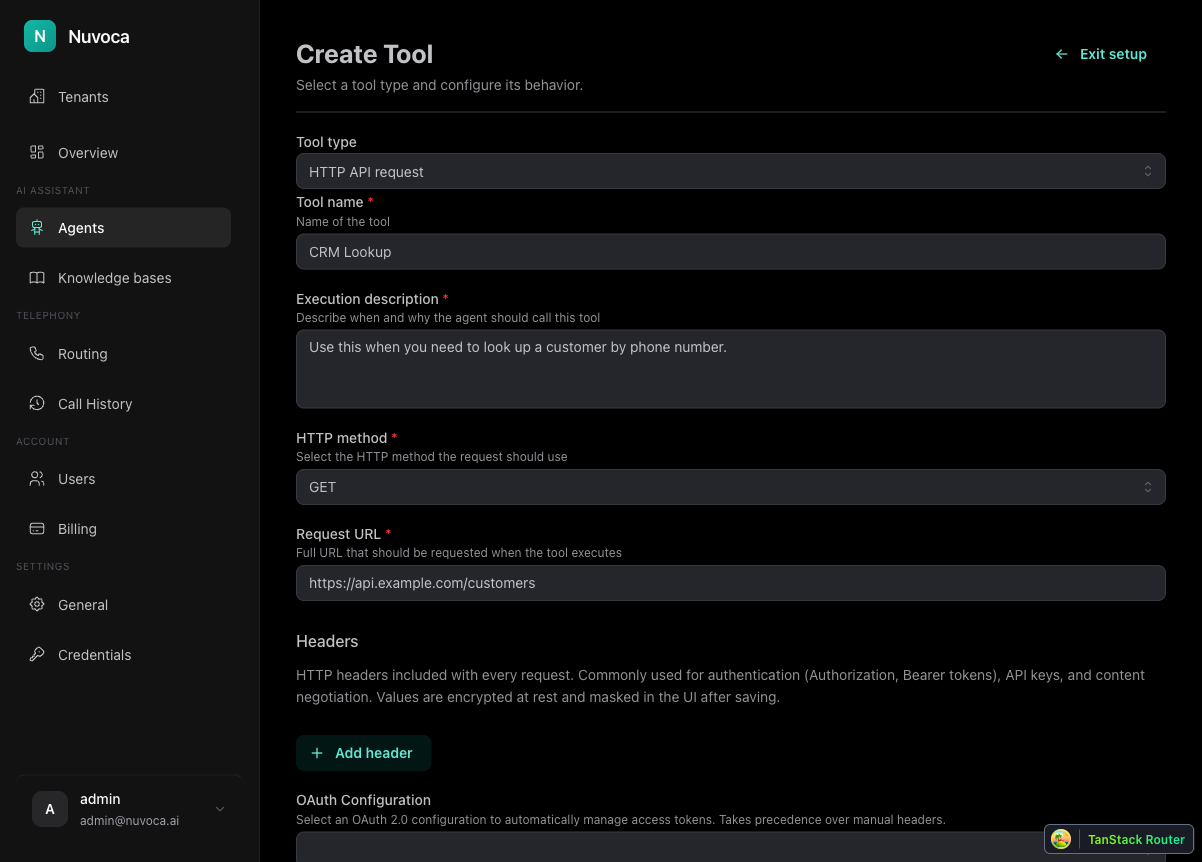
| Field | What it means | Callback example |
|---|---|---|
| Tool name | Internal name used in the tool list | create_callback_lead |
| Execution description | The trigger logic for when the model may use the tool | Run only when all callback data is present |
| HTTP method | The request method | POST |
| Request URL | The endpoint you want to call | https://api.example.com/callbacks |
Recommended execution description
This field matters more than most teams expect. For the callback assistant, use clear trigger logic like this:
Use this tool only after the caller name, company name, callback number, and reason for the call have been collected successfully. Use it to create a new callback request in the CRM. Do not use it early. After a successful call, close the conversation politely.
That keeps the model from sending partial records.
Authentication
API tools support both manual headers and platform-managed OAuth credentials.
Headers
Use headers when the target system expects:
- bearer tokens
- API keys
- custom authentication headers
Typical examples:
| Header | Example |
|---|---|
Authorization |
Bearer ... |
X-API-Key |
your-api-key |
Content-Type |
application/json |
OAuth
Use a saved OAuth credential when the target system requires delegated authentication and token refresh. The platform handles token storage and refresh for you.
See OAuth Setup if that target system needs OAuth.
Input Schema Builder
The input schema tells the model exactly what values to extract before the API call runs.
For the callback assistant, the schema should be explicit and boring. That is a good thing.
Recommended callback schema
Define a request body with fields like:
| Field | Type | Required | Description |
|---|---|---|---|
name |
String | Yes | The caller's name |
company |
String | Yes | The caller's company |
reason |
String | Yes | The reason for the call |
phone_number |
String | Yes | The confirmed callback number |
If your downstream system supports priority, team routing, or notes, add them only after the first four are stable.
Why the schema matters
If the schema is vague, the model has too much freedom. If the schema is explicit, the assistant knows exactly which values must be present before the call is allowed.
Recommended callback example
Tool name: create_callback_lead
Execution description: Use this tool only after the caller name, company name, callback number, and reason for the call have been collected successfully. Create a new callback request in the CRM, then close the conversation politely.

HTTP method: POST
Request URL: https://api.example.com/callbacks

Headers:
  Authorization: Bearer your-api-token
  Content-Type: application/json

Request body fields:
  - name (String, Required): The caller's name
  - company (String, Required): The caller's company
  - reason (String, Required): The reason for the call
  - phone_number (String, Required): The confirmed callback number

Timeout: 5000 ms
Run in background: No
Background execution
Only enable Run in background when the assistant does not need the API result before speaking again.
For the callback assistant:
- keep background execution off if the call should only end after the API succeeds
- consider turning it on only if the assistant can acknowledge the callback request first and the API result does not affect the caller-facing response
If you are unsure, leave it off.
How this should feel in production
The call should flow like this:
- The assistant gathers the callback details
- The assistant confirms the callback number
- The assistant runs the API tool
- The downstream system stores the request
- The assistant closes the call cleanly
That gives you a structured record instead of a loose summary email.
Common mistakes
Calling the API too early
If the API runs before the assistant has all four callback fields, the execution description is too loose or the prompt is skipping validation.
Weak schema design
If the schema says only customerData without defining the inner fields, the model has too much room to improvise.
Using API tools to rescue a weak call flow
If the assistant cannot reliably collect the callback details yet, API automation will only fail faster. Fix the conversation first.
Test the tool
After saving the tool:
- Place a test call through the callback flow
- Confirm the assistant only triggers the tool after the full callback request is captured
- Check the debug output to verify the request payload
- Confirm the downstream system received the right values
If the tool behavior is wrong, inspect:
- the assistant prompt
- the execution description
- the input schema
Those three pieces usually explain the failure.